
FAQs
If you are a transitioning Codesters customer, Learning.com does not offer the ability for students to sign-up with Google because students accounts need to be created before they can login.
Roster syncing using Clever or Classlink is highly recommended
Using Canvas, Schoology, or Google classroom, will mean that you will be launching into lessons from that LMS and set up will be required. With this solution, will not have access to EasyCode Pillars features in Learning.com like the project page, gamified student experience, reporting, and more.
Manual rostering is an option if you have a small number of students otherwise we have a User Input tool (UIT). If you have questions please contact support@learning.com
Learning.com doesn’t have the same kind of sandbox experience as Codesters but you can easily create a sandbox project area for your student’s by using groups.
Sandbox Free Form Projects. Creating a group Student group view
The free form projects will post to the project page where you can review and optionally share to the class page.
We have turning lesson on/off on the product roadmap but have a couple of alternatives in the meantime.
- Differentiation approach – students progress at their own pace:
Use class setting to enable a forced path with a minimum score. This will allow you to assign an entire module. Only the first lesson will be open and the rest locked. Once a lesson is completed with at least the minimum score, the next lesson will open. - Keeping Students together – Using the District Library:
A district library has been created for you to use to assign one lesson at a time. This allow teachers to introduce the lesson using the Intro Slides and to set the pacing for the class. Teachers also benefit by progressing together as a class by making it easier to help students with debugging since everyone is completing the same lesson. If you use the forced option with this approach, you will see scores in red for students who haven’t met the minimum score, giving you an easy way to see who may need help.
When lessons are added to the assignment list they will keep appending to the end of the gradebook.
If you are using the Python Sequence, the gradebook can get large requiring scrolling to see scores for later lessons. To simulate the ability to filter progress to a module like you had in Codesters with the icons, you can add Intro to Cdoesters to your class and then create a group for the additional modules.
If only using the a Capstone Pathway or only Python 1, there is no need for groups and you can add the lessons to your class.
By default, your classes with be set up with the pathway and a toggle for student to switch to a list view if they prefer.
If you prefer to assign a more mature view to your class using the class settings, students will not be able to change it. One advantage of this view is that student’s can hide completed lessons so that the next lesson is always at the top.
Because there is no reset button, you can use the library to demo a lesson multiple times. The progress won’t be saved when accessing the lesson outside of a class.
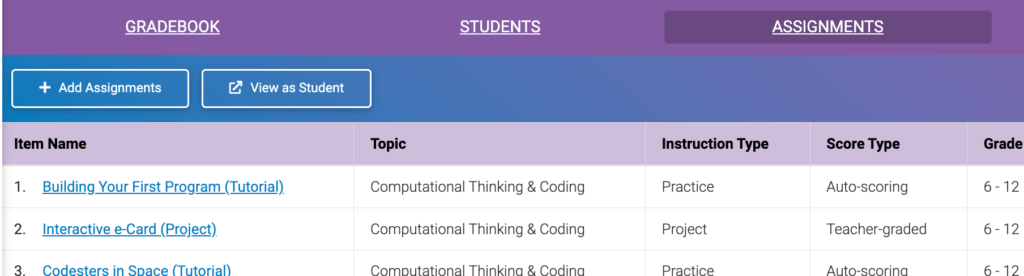
You can complete lessons like a student from the assignments tab by clicking the “View as Student” button. You will not see a demo teacher in your roster as you did in Codesters but the progress is saved. If you reenter the lesson, you will see the progress. (Note: There is no reset link so if you want to demo a lesson for multiple sections, you will need to enter the lesson through the library)
To see your progress you will need to launch into the Codesters Dashboard and your detailed progress will be in that dashboard under your name. You can also access the old Codesters Project page here to see any projects that you have created in your EasyCode Pillars lessons.
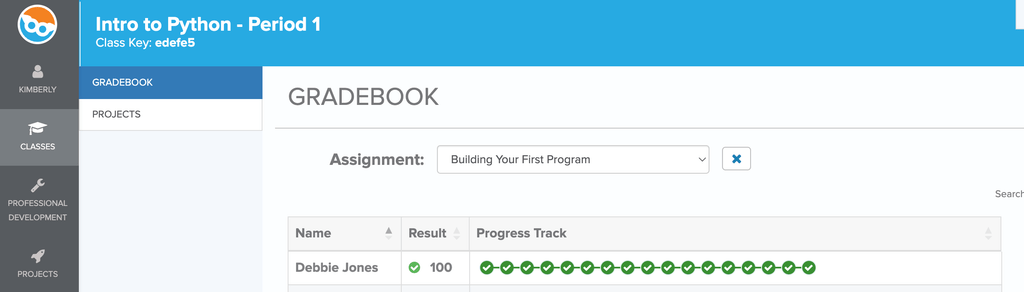
If you have your class settings set to forced with a minimum score or if you are assigning lessons one at a time from the district library, you will need to create a Teacher preview class. By creating your own class, you can have all of your lessons assigned and open.
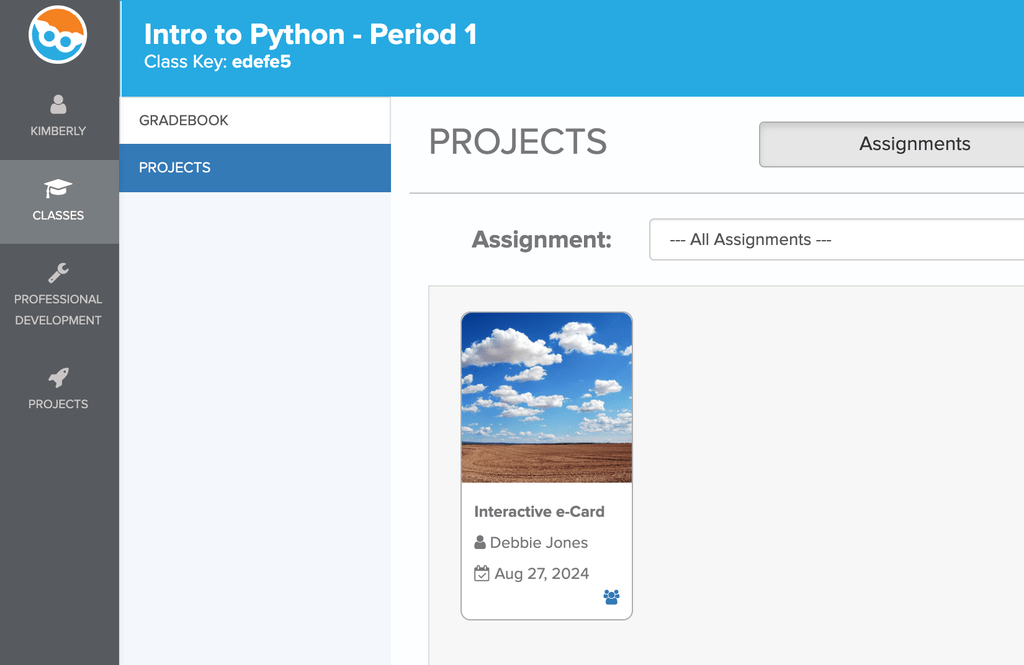
Because there is no demo teacher in your roster, your projects won’t post to the EasyCode Pillars project page. You can share your projects with the class on the board by launching to the Codesters dashboard.
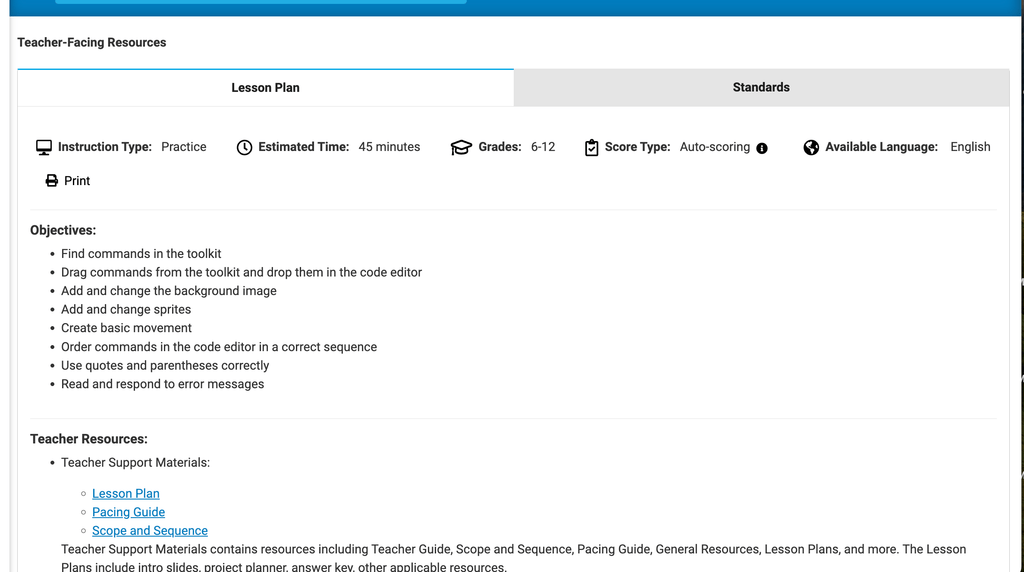
You will have all of the same resources that you had in Codesters. Go to the Assignments tab and click on a lesson name. You will then see the lesson plan or a link to the lesson plan.
When students submit a project and return to their dashboard from Codesters, they will have a pop-up with the option to enter a reflection. If they need to come back later to add to the reflection, they can do that from their “My Projects” page. Hovering over the 3 dots on a project card will show them the option to enter a reflection. They will also be able to see your feedback and their rubric grade from the reflection window.
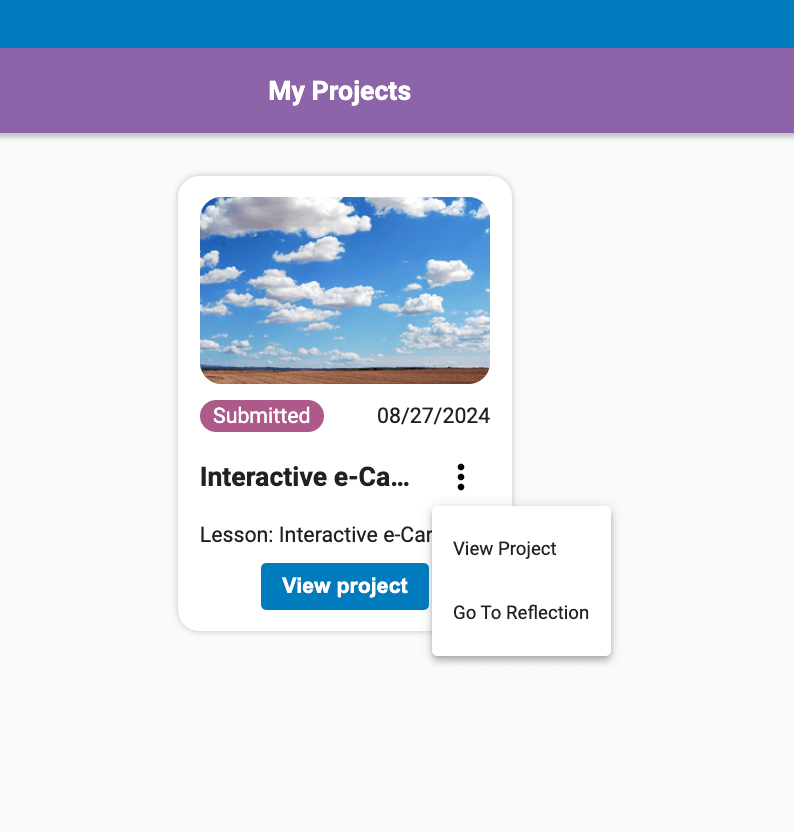
When students submit a project if will post to your project page. You will see a “Submitted” Status This means that the project only visible to you. Once you review a project, you can “Share” that project and then students will them be able to see it on the “Class Page”
Students have two ways to see projects:
- My Projects – Only projects that they have created
- Class Projects – Their own projects plus projects that have been shared by the teacher.
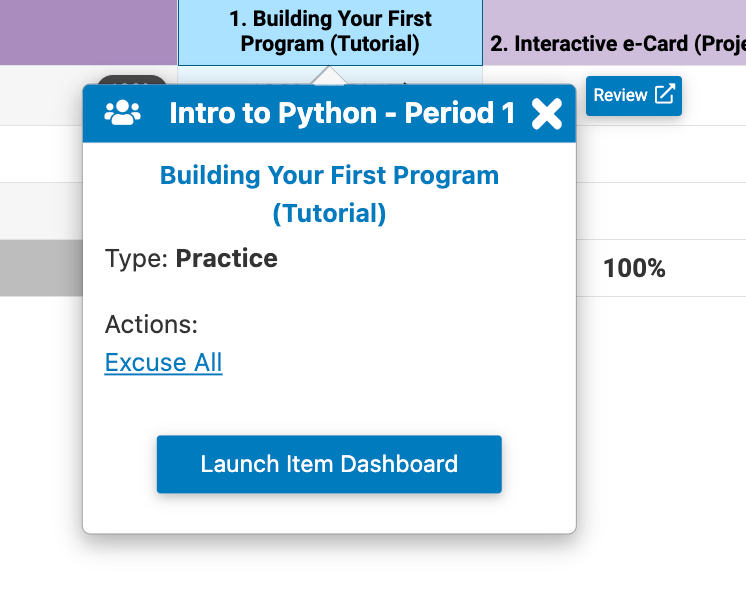
From the grade book, click on the lesson name or into any individual’s progress box for a lesson and you will see the Launch Item Dashboard pop-up. Click and you will be taken to the Codesters dashboard to see the student detail for a lesson. There is a drop down to change lessons from this dashboard.
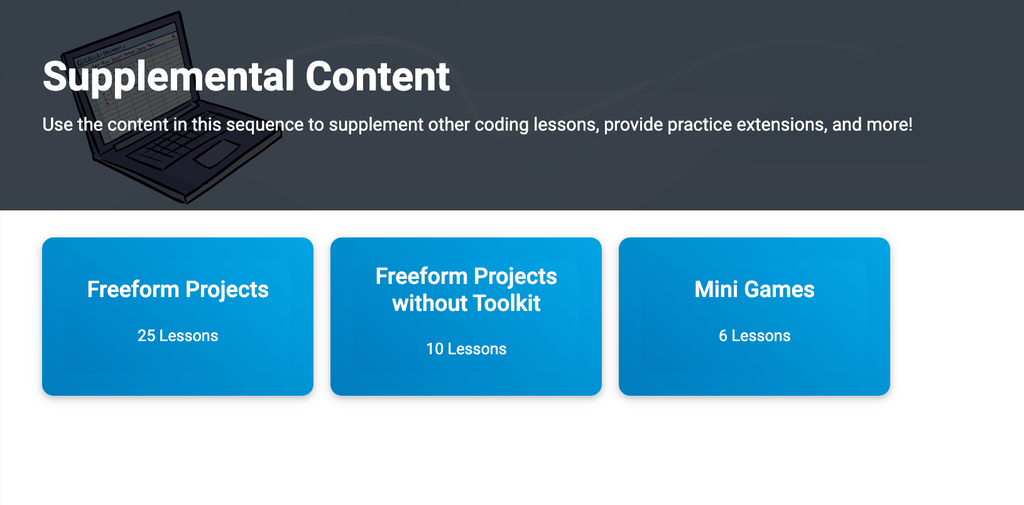
The EasyCode Pillars Supplemental Course contains several modules.
- Freeform Projects: 25 blank create projects
- Freeform Projects without Toolkit: 10 blank projects with the toolkit removed so that students need to type code
- Mini Games: Six lessons (5 games) – Great for Computer Science EdWeek
We have an EasyCode Pillars course on our Online Training Center (OTC) that will introduce you to EasyCode Pillars powered by Codesters. After you have completed that, there is a second course where you can learn more about how your district may be using EasyCode pillars. We suggest completing both courses.
In place of the Codesters admin panel, school and district coordinators will have access to our Implementation Report for reviewing usage data.