
Master Your Adaptive Keyboarding Dashboard
Take control of student progress with powerful, granular monitoring tools
🚀 Two Quick Ways to Access Your Dashboard
From Your Gradebook
Click the “Review” button – it’s that easy!
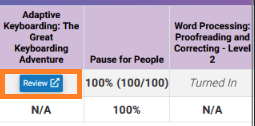 Fastest Route
From Class Assignments
Find your assigned Adaptive Keyboarding item and click view/play
 Alternative Path
🎯 Powerful Tools at Your Fingertips
Your dashboard is packed with everything you need to track, adjust, and celebrate student progress!
Class Overview Dashboard
Get the big picture instantly! Color-coded progress shows you which students are below, proficient, or exceeding expectations.
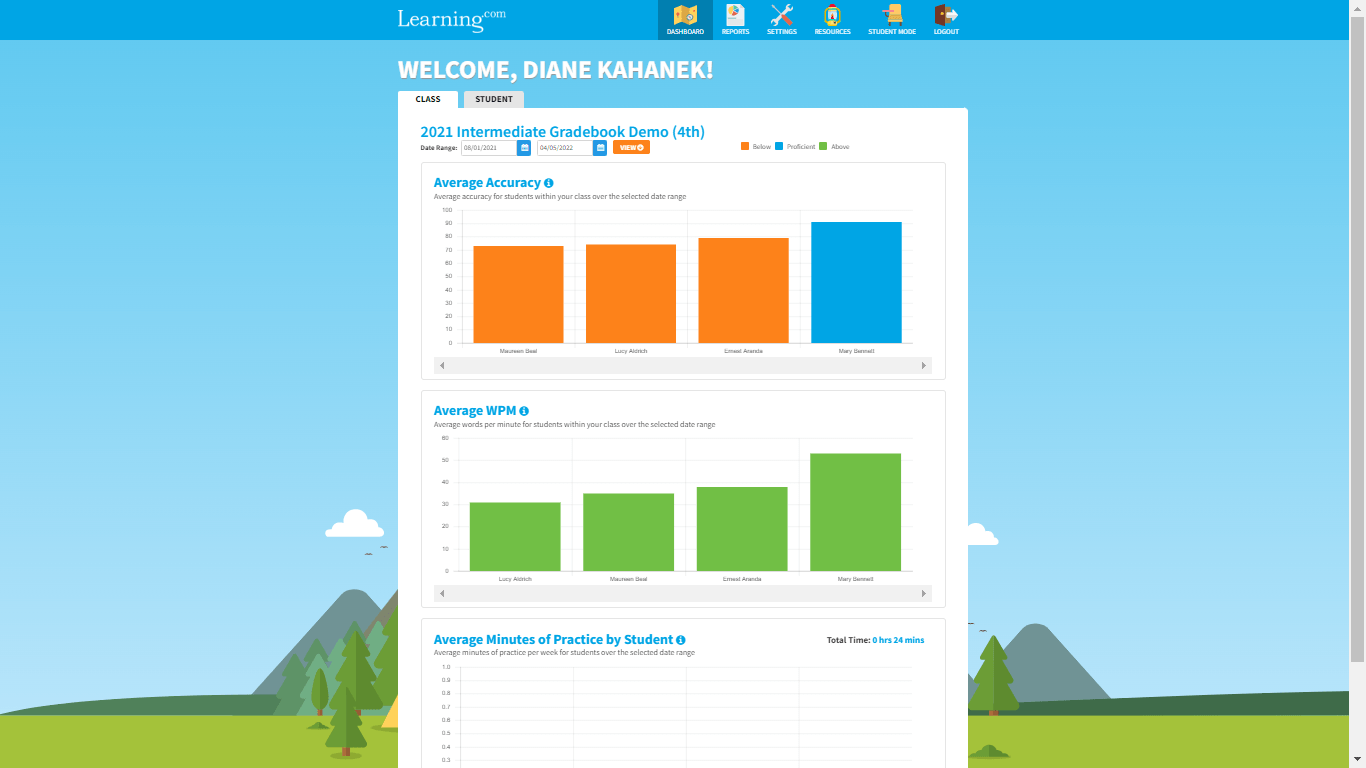
Individual Student Deep-Dive
Click the Student tab to see detailed progress for each learner. Perfect for parent conferences and individualized support!
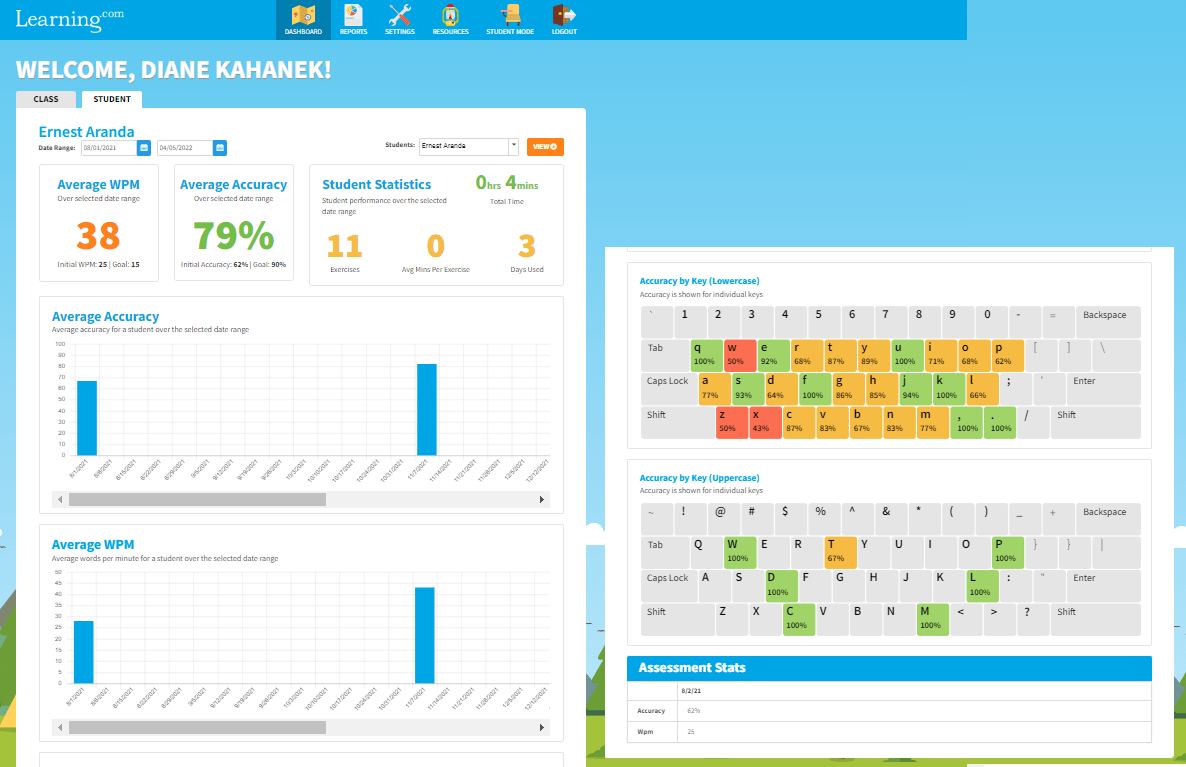
Detailed Reports & Data Export
Need data for administrators? Export comprehensive reports for any date range with just a few clicks.
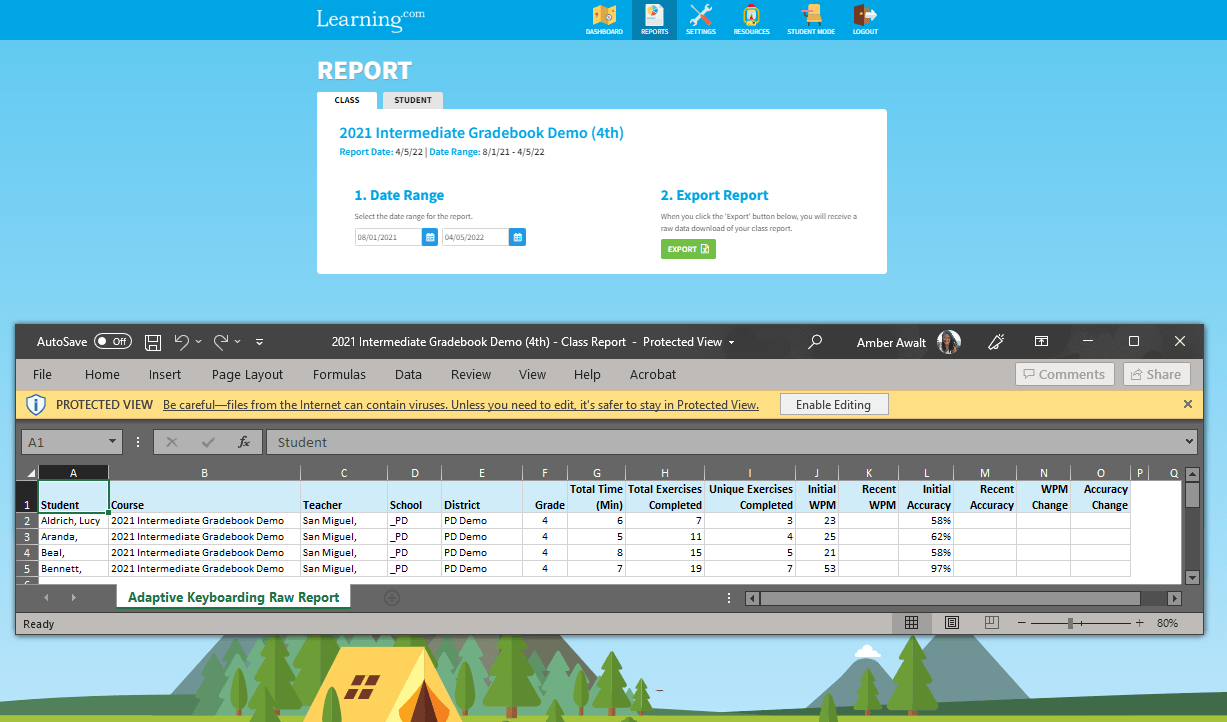
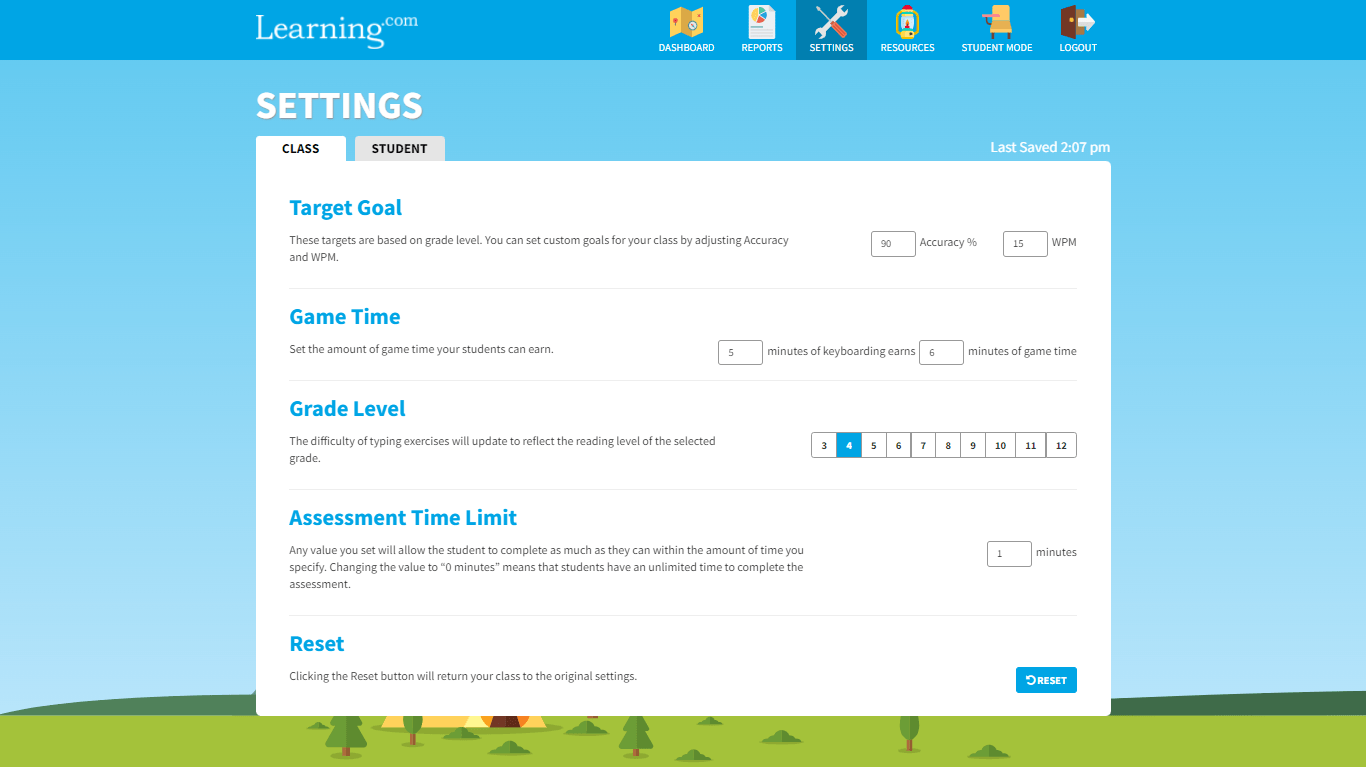
Smart Settings Control
Adjust goals and difficulty for your whole class OR fine-tune settings for individual students. You’re in complete control!
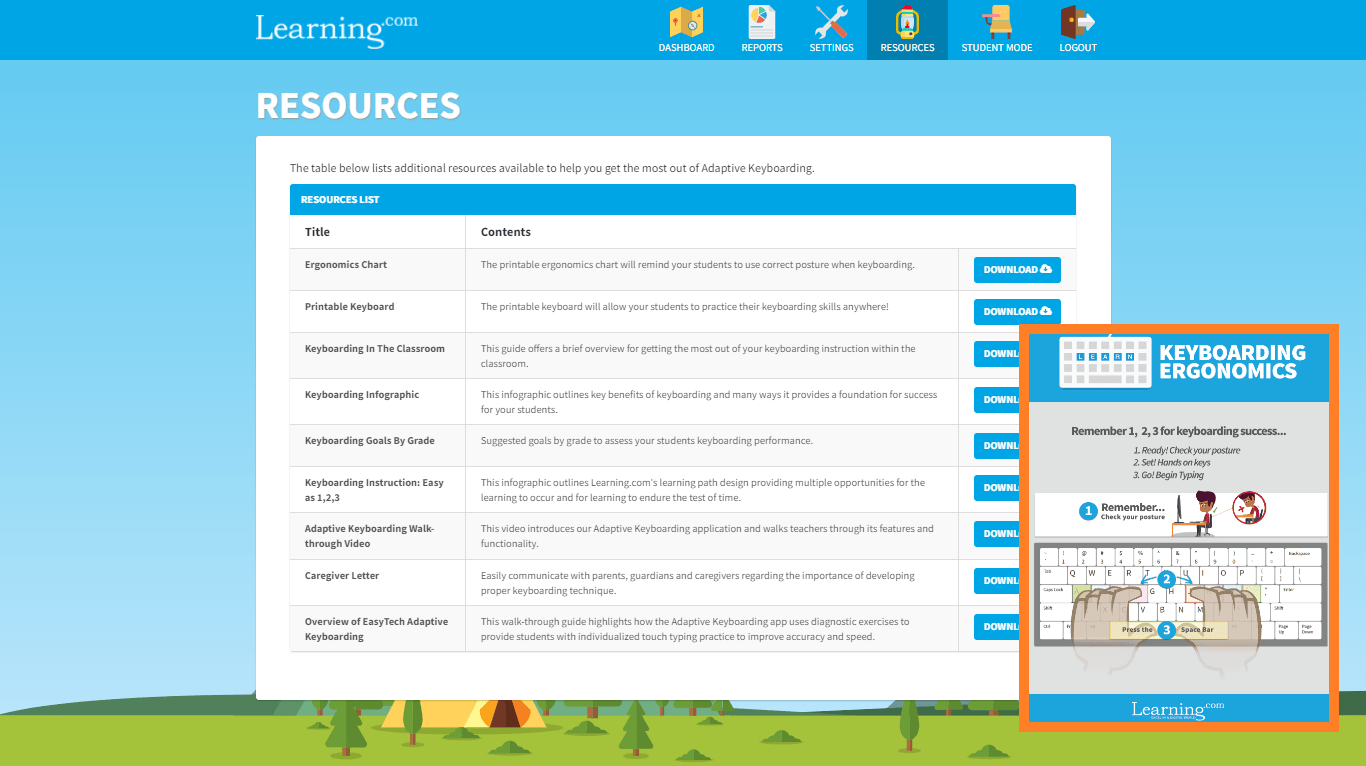
Printable Resources
Bring keyboarding offline! Print charts for bulletin boards, student folders, or take-home progress reports.
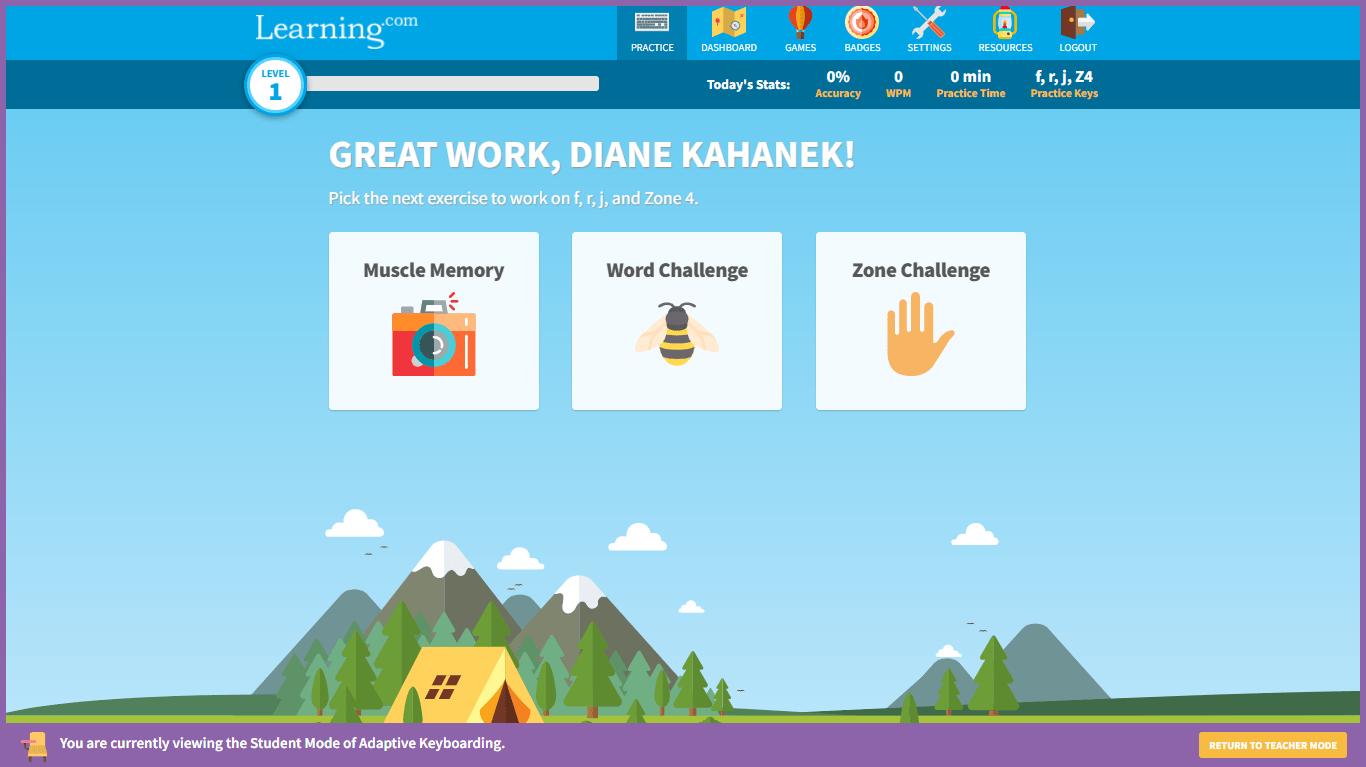
Student Experience Preview
Curious about what your students see? Click ‘Student Mode’ to experience typing challenges, earn game time, and see their dashboard!
Need Help Reading Reports?
Download our Adaptive Keyboarding Raw Report Key for easy data interpretation!
Using Tech Quest?
If you’re accessing Adaptive Keyboarding through Tech Quest, you’ll see scores in the Tech Quest Gradebook instead of the full dashboard. The accuracy rate shown updates automatically as students progress!